
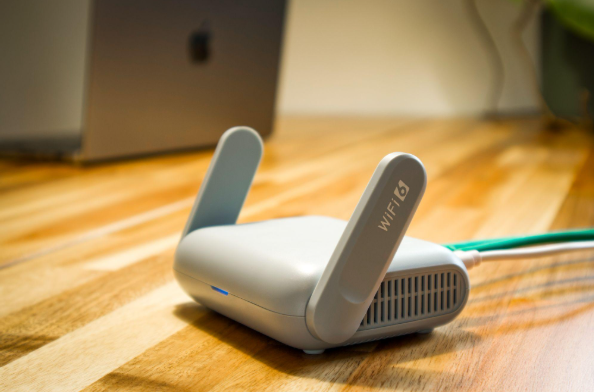
Picture the waiting area at a body shop, a dental office, or a restaurant. There is a little sign on the counter with the guest wifi name and password, and customers connect while they wait. Most owners assume that network is walled off from the office computers. In a lot of the businesses we walk into, it is not.
Usually nobody did anything careless. Someone turned on the guest option in the router years ago, a second network name showed up on everyone’s phone, and that looked like the job was done. The name was separate. The network behind it was not.
I want to explain what guest wifi is supposed to do, the simple test that tells you whether yours does it, and the five checks worth running on your own setup.
What guest wifi is supposed to do
Someone on your guest wifi should be able to get on the internet, check email, and stream a video while they wait. That is all. They should not be able to see or reach anything that belongs to the business, which includes:
- Office computers and any server
- Network printers
- File storage and backup drives
- Security cameras and the recorder they save to
- Door access or alarm systems
- The setup pages for your router and network equipment
- Other people’s phones and laptops on the guest network
The Australian Cyber Security Centre recommends keeping a business’s internal network separate from the network used by devices the business does not manage, in its guidance on enterprise mobility. Both networks can share the same internet connection. The separation happens inside your router, firewall, and wireless equipment.

Why it matters even when you trust the visitor
This is not about suspecting your customers. It is about their phones. You have no idea whether a visitor’s laptop has its updates, whether it picked up something nasty last week, or who else has used it. Neither do they, most of the time.
Being on the same network does not hand anyone your files. Your passwords and permissions still apply. But a device on the same network can find and knock on things it has no business touching, like a printer, a shared folder, a camera recorder, or a router page still using its factory password. An infected device will try exactly that, quietly, all day.
The UK’s National Cyber Security Centre explains in its guidance on network access that dividing a network into sections limits how far a compromised device can reach. That is all proper guest wifi is: one of those sections, with the door to the rest of the building locked.
Two names on the list is not the same as two networks
When you open the Wi-Fi menu on your phone and see “ShopName” and “ShopName-Guest,” those are two network names. The technical term is SSID, but it just means the name you pick from the list.
A second name does not prove anything is separated. What matters is what happens behind it. On business equipment, guest wifi is normally put on its own virtual network, called a VLAN, which you can think of as a separate lane on the same road. Then a firewall rule blocks that lane from reaching anything inside the office. Cisco’s branch design guide describes it exactly that way, and its small office reference design uses a rule that denies guests access to the local network.
Some small-business routers do this automatically when you turn on guest mode. Some do part of it. Some just broadcast a second name and do nothing else. If your setup screen only asked you for a name and a password, that is worth checking.
The two-minute test any owner can run
You do not need to read a single setting to find out where you stand. Connect your phone to your own guest wifi, the same way a customer would. Then try to reach something that belongs to the business.
Try to print to the office printer. Open your camera app if it works on the local network. Type your router’s address into the browser. If any of those work from the guest wifi, your visitors can reach them too.
This is one of the first things we check when we visit a new client, and the results are often a surprise. We have found guest networks wired straight into the office network, the guest password unchanged on the counter for three years, and the camera system sitting where any waiting customer could find it. None of it was hard to fix once someone looked.
If something does work from the guest side, do not start changing router settings in the middle of the business day. Write down what you could reach and from which network name. That list is exactly what your IT provider needs, and it turns a vague worry into a fix that usually takes an hour or two. While you are at it, note who has the router’s admin password. In a surprising number of offices the honest answer is the person who installed it years ago, and nobody else.
Keep guests away from each other, too
There is a second setting most people have never heard of. It stops devices on the guest wifi from talking to each other. Depending on the brand it is called client isolation, wireless isolation, or peer-to-peer blocking.
Without it, one visitor’s laptop can reach the phone of the person sitting next to them. With it, every guest is on their own. This is a different thing from keeping guests away from your business systems, and a good guest wifi setup uses both.
Where employee phones, smart TVs, and cameras belong
An employee’s personal phone that only needs the internet can usually live on the guest wifi. That keeps a device the business does not manage off the office network, which is the goal. If staff use personal phones or laptops to reach company files or systems, that calls for a written device policy with its own rules.
Smart TVs, speakers, digital signs, thermostats, and cameras are the ones people forget. They need the internet but have no reason to talk to your computers. Some businesses put them on the guest wifi, which works for simple devices. Cameras that record to a box in the back office may need their own separate network instead. CISA’s mobile workplace security guidance describes using separate networks for guests, connected devices, personal devices, and work computers. The point is the same either way: a smart TV should not be able to reach the accounting computer just because they share a router.
5 checks for your guest wifi
1. Know what is on each network
Business computers and managed equipment go on the business network. Visitors, personal phones, and anything the business does not manage go on the guest wifi.
2. Confirm guests cannot reach the office
Run the printer test above. Guests should not reach printers, file storage, cameras, servers, or any setup page.
3. Turn on client isolation
If your equipment supports it, switch it on for the guest wifi so visitors cannot reach each other’s devices.
4. Check the security settings and passwords
Use WPA3 if your equipment and devices support it, or WPA2 if not. The Australian Cyber Security Centre’s advice on securing your Wi-Fi and router lays out the order. Use a guest wifi password that is different from your business password, and change it every so often. After a big event, or once a contractor is finished, is a good time.
5. Keep the equipment current
Install firmware updates on the router and access points, change any factory admin passwords, and replace equipment that no longer gets security updates. Then test the guest wifi again any time equipment is replaced or reconfigured, because a new router does not remember the old rules.
If you want someone to run these checks for you, it is part of what our network management covers.
You probably do not need a second internet line
People often assume separate guest wifi means paying for a second internet connection. For most small businesses it does not. A decent business router or firewall can run both networks over one connection and keep them apart. You can even cap how much speed the guest network gets, so a waiting room full of phones does not slow down the office. Our post on improving Wi-Fi performance covers that side of it.
The exception is very cheap or very old routers. Some offer a guest option that does not actually isolate anything. If yours is one of those, the fix is better equipment, not a second line.
What guest wifi will not do
I want to be honest about the limit. Guest wifi done right keeps visitors away from things they do not need. It does not stop a phishing email, a stolen password, or a laptop in the office that was already infected. You still need multi-factor sign in, updates, endpoint protection, and backups.
It is one sensible layer, and it is cheap to get right. If you want the stricter version, our earlier post on zero trust for guest wifi covers the next steps.
Frequently asked questions
Is a guest wifi password enough to protect my business network? No. The password only controls who can join. Your equipment also has to block guest devices from reaching anything on the business network.
Can guests use the same internet connection as employees? Yes. One connection can serve both, as long as the router and wireless equipment keep the two networks separate inside.
Should employees put their personal phones on the guest wifi? If the phone only needs the internet, yes, that is usually the safer place for it. Phones that need company systems should follow your device policy.
Can visitors print to our printer? Normally that should be blocked. If customers really need to print, your IT provider can set up a controlled way to do it without opening the rest of the network.
Does guest wifi stop cyberattacks? No. It cuts down unnecessary access and limits how far a compromised device can reach. You still need the rest of your security in place.
If you ran the printer test and something printed, you are in good company, and it is usually a quick fix. Our guide on why your business needs a cyber shield walks through this and the other basics that keep a small office protected.
Featured image: Pexels